
How to Report Content
Help make CleanStream better for every family - reporting a scene takes less than a minute!

1. Start watching with CleanStream
Open your movie or show and watch as normal with CleanStream running.

2. Notice unwanted content
Press Escape to exit Full Screen first
Then press Spacebar (or click anywhere) to pause the movie
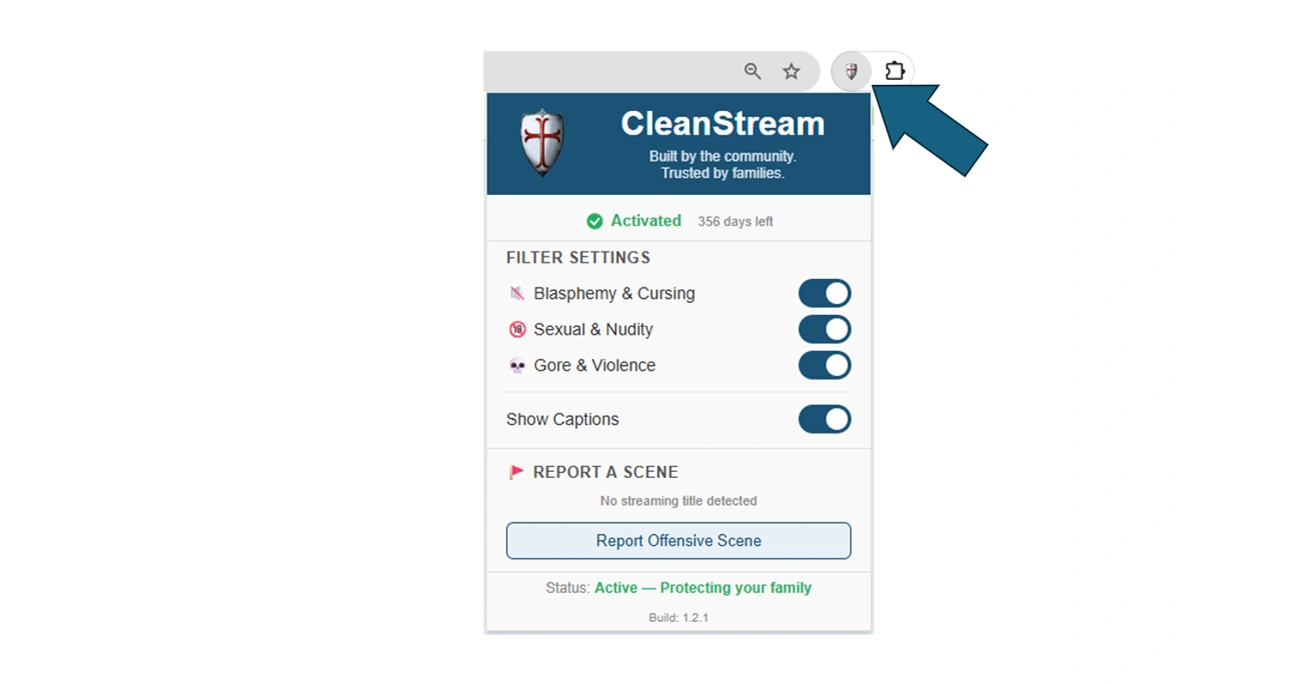
3. Click the CleanStream icon on the Toolbar
At the bottom of the CleanStream panel, click on Report Offensive Scene
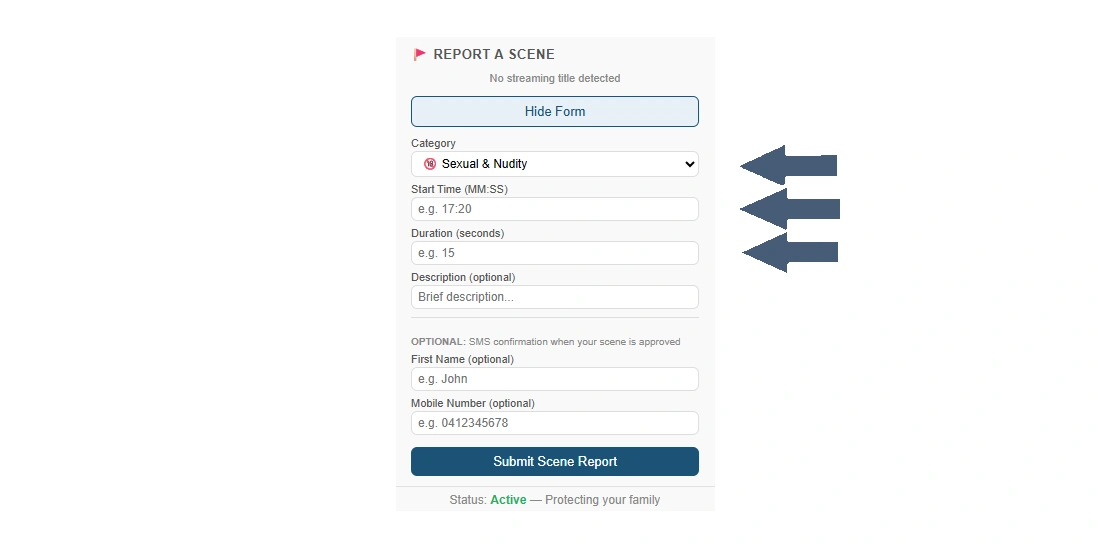
4. Use the report feature to
Choose the Content Type in the Category drop-down
Check the timestamp on the video player for the start time
Fill in the Start Time e.g. 17:20 (The : autofills)
In Duration fill in the seconds
(Optional) Add a short note
Also optional is to fill in your details if you want an SMS
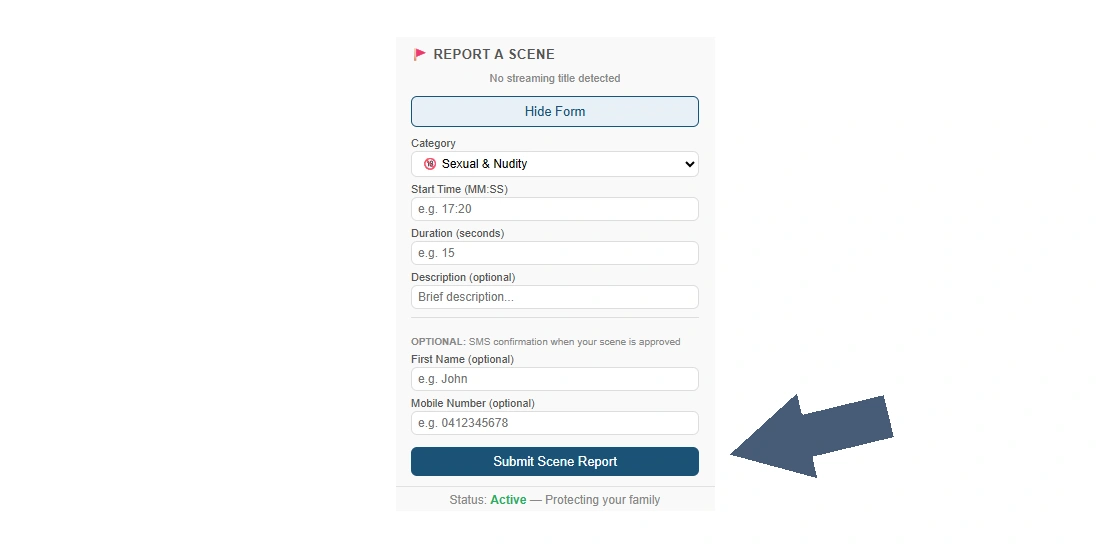
5. Submit your report
Click Submit Scene Report - your report is sent for review
If you filled in your details you will receive an SMS notification

6. Submission confirmation
Every submission is checked to ensure accuracy and consistency
We review, do adjustments if necessary, and approve
Once approved
The filter is added
Other families benefit immediately
If you opted in you'll get an SMS
CleanStream becomes more effective for everyone
7. Resume watching
Click back on the movie to resume
Press F or click the fullscreen button to return to Full Screen